Working with typing notification#
Sending notifications about typing is a useful feature for emulating live chat. The GREEN-API service offers manual and automatic notification settings. Automatic settings are configured once in the instance settings and then automatically calculate the delay for each outgoing text message. Manual settings must be configured directly for each outgoing text message.
Attention
For automatic typing notifications to work, do not specify a value for the typingTime field in the SendMessage method. The typingTime field in the SendMessage method has a higher priority.
Manual setup for notification of typing#
-
Sending a message typing notification by the SendTyping service method
This method sends a text or voice typing notification to the chat. The notification duration is limited to 1 to 20 seconds.
This method does not send any messages to the chat.
-
Sending a message typing notification by the SendMessage method
The optional `typingTime' field must be filled in, specifying a numeric value between 1000 and 20000 milliseconds. When sending messages, you can specify values for typing time. The notification duration is limited to values between 1000 and 20000 milliseconds (1 to 20 seconds).
Setting an instance for automatic notification of typing#
To work with typing notifications on an instance, you need to enable the 'autoTyping' setting (this setting is disabled by default).
You can enable the setting by:
- Console, in instance settings, specifying values from 1 to 4. A value of 0 disables the setting.
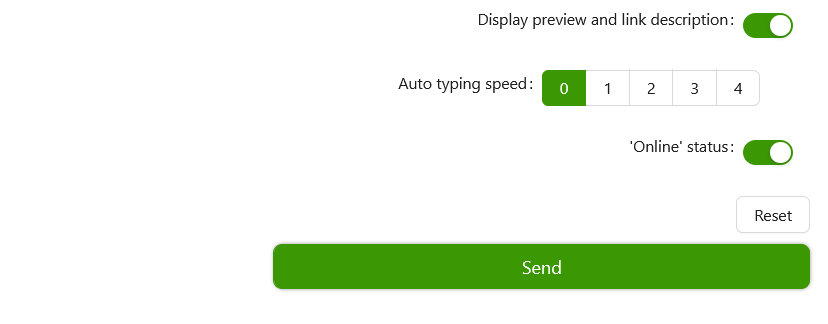
-
Method SetSettings, specify a value from 1 to 4. If the value is 0, the setting is disabled:
"autoTyping": 2 -
When creating an instance, use the CreateInstance partner method to specify a value from 1 to 4. A value of 0 disables the setting:
"autoTyping": 2
How to manage the automatic typing notification sending setting#
The time it takes to display the message typing notification before sending depends on the text length and the value of the autoTyping parameter.
The autoTyping parameter controls the simulated message typing speed and can take the following values:
- 0 - Automatic typing simulation disabled (typing notification is not sent)
- 1 - Message typing speed is 5 characters per second
- 2 - Message typing speed is 10 characters per second. We recommend using this value
- 3 - Message typing speed is 15 characters per second
- 4 - Message typing speed is 20 characters per second
- 5 - Message typing speed is 25 characters per second. Values of 5 and higher are not available when configured in your personal account
- 6 - Message typing speed is 30 characters per second
- 7 - Message typing speed is 35 characters per second
- 8 - Message typing speed is 40 characters per second
- 9 - Message typing speed is 45 characters per second
- 10 - Message typing speed is 50 characters per second
- Values greater than 10 will set the message typing speed to 50 characters per second
The typing notification time is calculated using the formula:
typingTime = (textLength / (autoTyping × 5)) × 1000, where:
autoTyping- Message typing speedtextLength- Text length from 0 to 4096typingTime- Typing time
Limits of displaying typing notification
The minimum display time for the typing status is 500 ms.
The maximum display time for typing status is 20,000 ms.
For example, if you send a three-character text, the notification display time will be 500 ms.
For huge texts, if the typing time according to the formula exceeds 20,000 ms, the status will still be displayed for 20,000 ms.